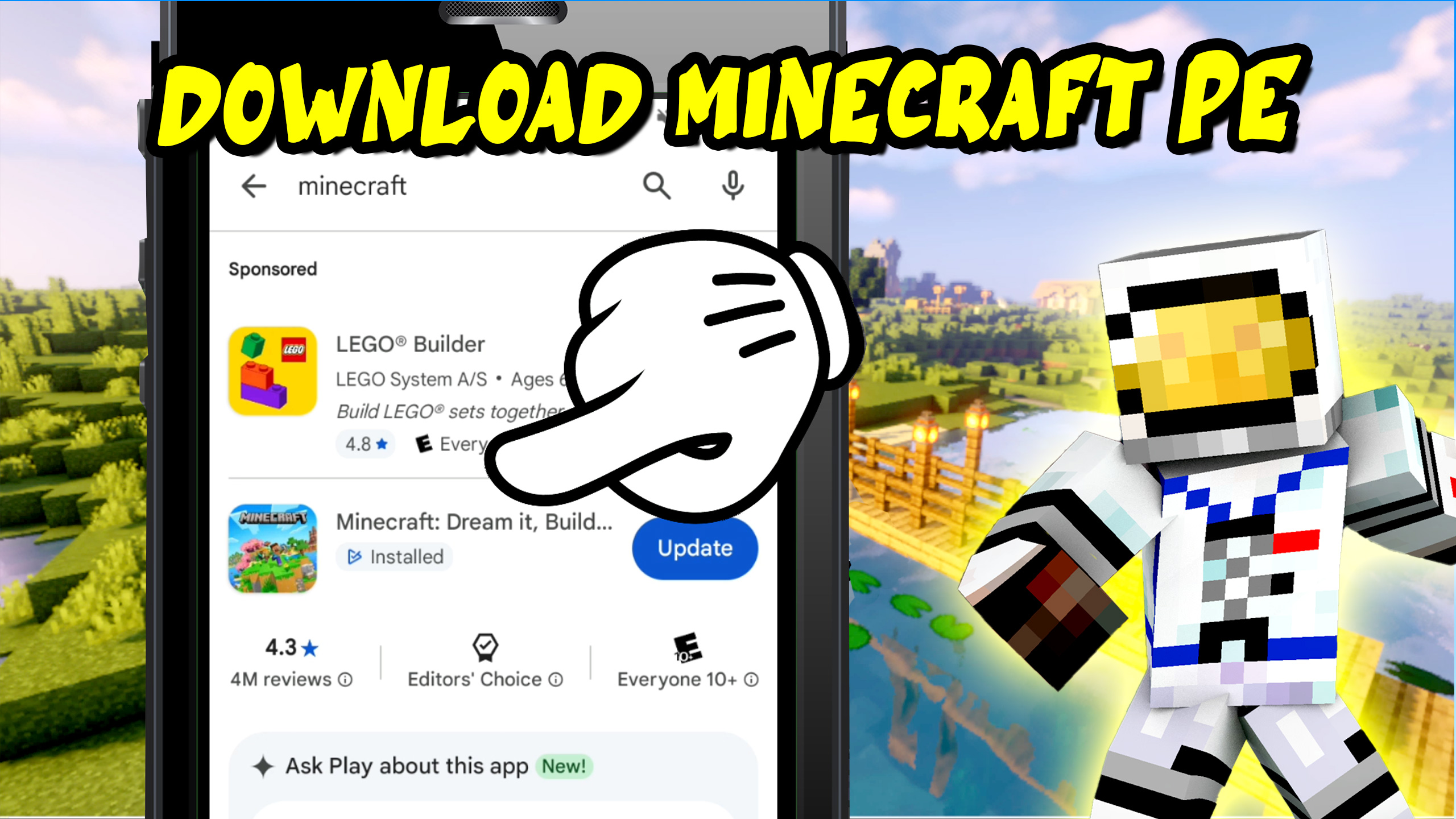
How to Get Minecraft PE on Android (Step-by-Step Beginner Guide)
Hi, George here! In this tutorial, I’ll show you how to get Minecraft PE (Pocket Edition) on an Android phone. The process is quick, simple, and perfect for beginners.
Step 1: Open the Google Play Store
Start by opening the Google Play Store on your Android device.
Once inside the store, tap the search box at the top and begin typing Minecraft.
You should see Minecraft appear at the top of the search results. Tap on it to open the app page.
Step 2: Install or Update Minecraft PE
If you don’t already own Minecraft PE, you’ll see an Install button.
Minecraft PE typically costs around $7 USD for the full mobile version.
If you already have the game installed, you’ll see an Update button instead.
Keeping Minecraft updated is important so you always have the latest features, fixes, and improvements.
After tapping Install or Update, the download usually takes about one minute, depending on your phone’s internet connection.
Once finished, the game installs automatically.
Step 3: Launch Minecraft on Your Phone
When installation is complete, you’ll see both the Uninstall and Play buttons.
You can also find Minecraft on your phone’s app list.
Look for the icon with the familiar grass block design, then tap it to launch the game.
Your screen will rotate sideways as Minecraft loads.
After loading, you’ll be inside the Minecraft Bedrock Edition main menu.
Step 4: Sign In to Minecraft
To start playing, tap Play and sign in to your Minecraft account.
You’ll see an Xbox sign-in screen.
This is the normal Microsoft account login used for Minecraft.
- Sign in using your email, phone number, or Skype.
- If you don’t have an account, you can create one for free.
After signing in, Minecraft will take you directly into the game.
Extra Tips
You might notice custom colors or skins in Minecraft.
In a future tutorial, I’ll show you:
- How to change your Minecraft skin
- How to use a classic skin style
- How to customize the look of your interface
Final Thoughts
That’s all there is to it!
Now you know how to download, install, update, and launch Minecraft PE on Android.
If you found this helpful, be sure to like the video and subscribe for more Minecraft Pocket Edition tutorials.
I’ll be sharing lots more guides on how to use Minecraft on your smartphone.
Thanks for watching, and I’ll see you in the next tutorial!