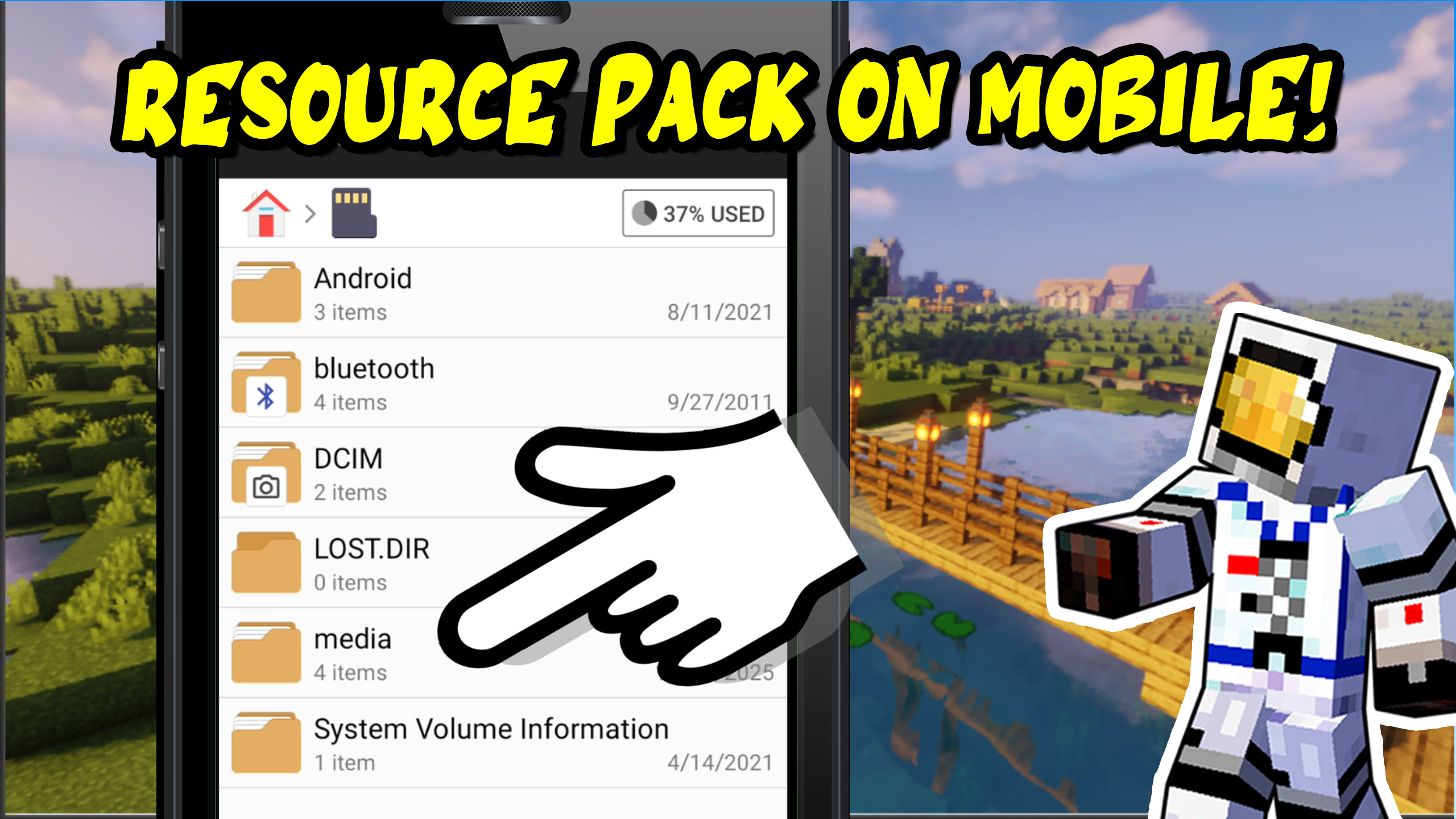
How to Install Resource Packs in Minecraft Mobile (Bedrock / PE Guide)
Hi, George here! A lot of you have been asking about resource packs for Minecraft Mobile, Pocket Edition (PE), or Android.
The good news is that it’s actually very easy to do.
Minecraft Mobile uses the same resource packs as standard Bedrock Edition.
Let me walk you through how to load one of those packs onto your phone step-by-step.
What You Need First
- A Minecraft Bedrock resource pack saved as an .mcpack file
- A file manager app on your Android phone (I’m using File Manager Plus)
For this example, I’m using a simple resource pack I created that changes the
menu buttons from gray to blue. It’s perfect for demonstrating the process.
Step 1: Locate the MCPack File
Open your file manager on your phone and navigate to where your
.mcpack file is stored. Mine is inside the Media folder.
Look for the file name of your pack. In my case, it’s called
Custom Buttons.mcpack.
Step 2: Import the Resource Pack into Minecraft
Simply tap or double-tap the .mcpack file (depending on your phone).
Minecraft will automatically launch and begin importing the resource pack.
The import process usually takes just a few seconds.
Once finished, you’ll see a confirmation message that the pack was
successfully imported.
Step 3: Activate the Resource Pack
After importing, you still need to enable the pack inside Minecraft:
- Open Settings
- Scroll down the left side to Global Resources
- Select My Packs
- Tap your newly imported pack
- Press Activate
Once activated, back out of the menus and let Minecraft reload with the new resources.
Step 4: Check That the Pack Is Working
You should now see the updated visuals.
In this example, the menu buttons are now blue instead of gray.
Open additional menus or in-game options to confirm the resource pack
is applied everywhere. If everything looks correct, your installation worked!
Final Thoughts
Installing resource packs in Minecraft Mobile is simple:
- Use a normal Bedrock .mcpack file
- Open it from a file manager on your phone
- Activate it in Global Resources
That’s all there is to it!
If you’d like to see more Minecraft Mobile tutorials, downloads, and customization guides,
let me know in the comments. Don’t forget to like the video and
subscribe for more step-by-step Minecraft help.
Thanks for watching, and I’ll see you in the next tutorial!