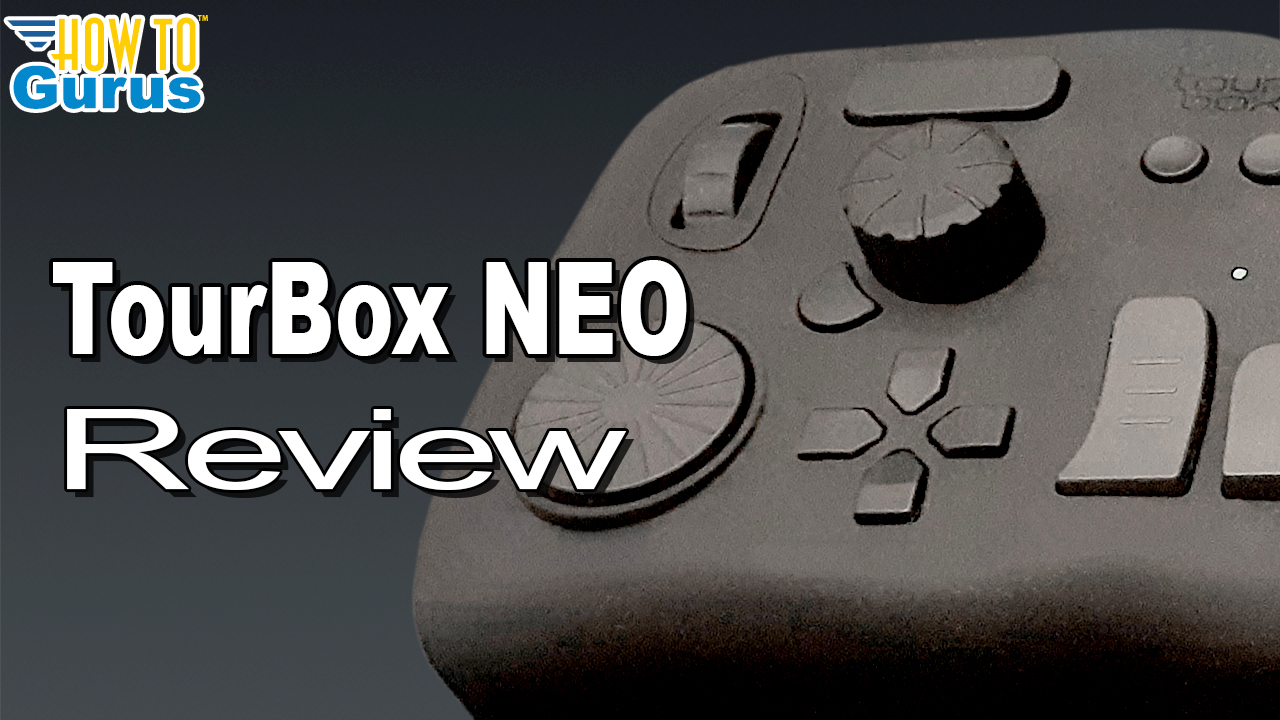
TourBox Neo Review: A Productivity Controller for Photoshop, Lightroom, and Premiere Pro
If you work in Photoshop, Lightroom, Premiere Pro, or other creative programs, the TourBox Neo is a compact editing controller designed to speed up common tasks and keep your hands off the keyboard.
TourBox sent me the TourBox Neo so I could test it out, see how it works, and share my thoughts. After trying it in several Adobe programs, it is easy to see why this kind of controller can be useful for photo editing, video editing, and creative workflow improvements.
What Is the TourBox Neo?
The TourBox Neo is a small desktop controller that sits next to your keyboard. It is only a little larger than a regular mouse, but it includes several wheels, dials, knobs, and programmable buttons that can replace many common keyboard shortcuts.
The build quality feels excellent. It has a solid, heavy feel, so it stays in place on the desk instead of sliding around while you are working.
Main Controls on the TourBox Neo
The main controls are the knob, dial, and scroll wheel. These are especially useful because they let you adjust settings quickly without moving your mouse away from your image, video timeline, or editing workspace.
- Knob: Useful for adjustments like brush size in Photoshop or slider adjustments in Lightroom.
- Scroll wheel: Can be used for zooming, full screen viewing, or cycling through options.
- Dial: Great for changing selected numeric values, such as text size, color values, or timeline position.
- Programmable buttons: Can be assigned to keyboard shortcuts like Alt, Shift, Control, Space, tools, and custom commands.
Using TourBox Neo with Photoshop
In Photoshop, the TourBox Neo can make common editing tasks much faster. For example, when using Select and Mask, the knob can be used to increase or decrease brush size instantly. This makes it easy to adjust the brush while working without going back to the toolbar or menus.
The controller is also very useful with the Clone Stamp Tool. By setting the knob press to the Alt key, you can select a clone source directly from the controller while keeping your finger ready to adjust brush size. This creates a very fast and natural workflow for retouching and cleanup work.
The scroll wheel can be set to zoom in and out, and pressing it can switch to full screen. The dial can also adjust selected values, such as text size or color settings in the Color Picker.
Customizing Controls in the TourBox Console
The TourBox Console software is where you control the presets and button assignments. You can set up different profiles for different programs, and the software can automatically switch presets when you move from one program to another.
For example, you can have one preset for Photoshop, another for Lightroom Classic, and another for Premiere Pro. If the software is set to auto switch, TourBox will detect the active program and load the matching controls.
Using TourBox Neo with Lightroom Classic
In Lightroom Classic, the TourBox Neo is especially useful in the Develop module. The controls can be used to adjust sliders such as Exposure, Contrast, Temperature, Tint, Highlights, Shadows, Whites, and Blacks.
One useful workflow is to move your mouse over a slider and use the dial to adjust that slider directly. This makes Lightroom adjustments feel faster and more tactile than dragging sliders with a mouse.
The Tour button can also be used to reset a selected slider back to its default setting, which makes experimenting with adjustments quicker and easier.
Using TourBox Neo with Premiere Pro
In Premiere Pro, TourBox Neo can help with both editing and color correction. In an editing preset, the knob can move through the timeline, the scroll wheel can zoom in and out of the timeline, and the dial can move the playhead.
The buttons can also be assigned to common editing actions such as play, stop, mark in, mark out, razor tool, and selection tool.
In a color preset, the TourBox Neo can control adjustments such as Temperature, Tint, Exposure, and Contrast. This gives you quick hands-on control over basic color correction settings.
Preset Support for Other Creative Programs
TourBox also provides downloadable presets for many creative applications. In addition to Photoshop, Lightroom, and Premiere Pro, there are presets available for programs such as Affinity Photo, Capture One, DaVinci Resolve, After Effects, Illustrator, CorelDRAW, and Final Cut Pro.
You can also manually create your own presets by assigning controls to specific keyboard shortcuts for almost any program.
Why TourBox Neo Can Speed Up Creative Work
The biggest advantage of the TourBox Neo is that it puts common editing controls under one hand. Instead of constantly moving between the keyboard, mouse, sliders, menus, and tool options, you can keep your focus on the image or video while using the controller for fast adjustments.
This can be especially useful for repetitive tasks like brush resizing, zooming, timeline navigation, clone stamp work, slider adjustments, and tool switching.
Final Thoughts
The TourBox Neo is a strong productivity tool for creative editing. It feels solid, it is highly customizable, and it works well with programs like Photoshop, Lightroom Classic, and Premiere Pro.
If you do a lot of photo editing, retouching, video editing, or creative production work, this kind of controller can make your workflow feel faster, smoother, and more natural.
Learn more about TourBox Neo: https://store.tourboxtech.com/?rfsn=5948261.ad2bf8