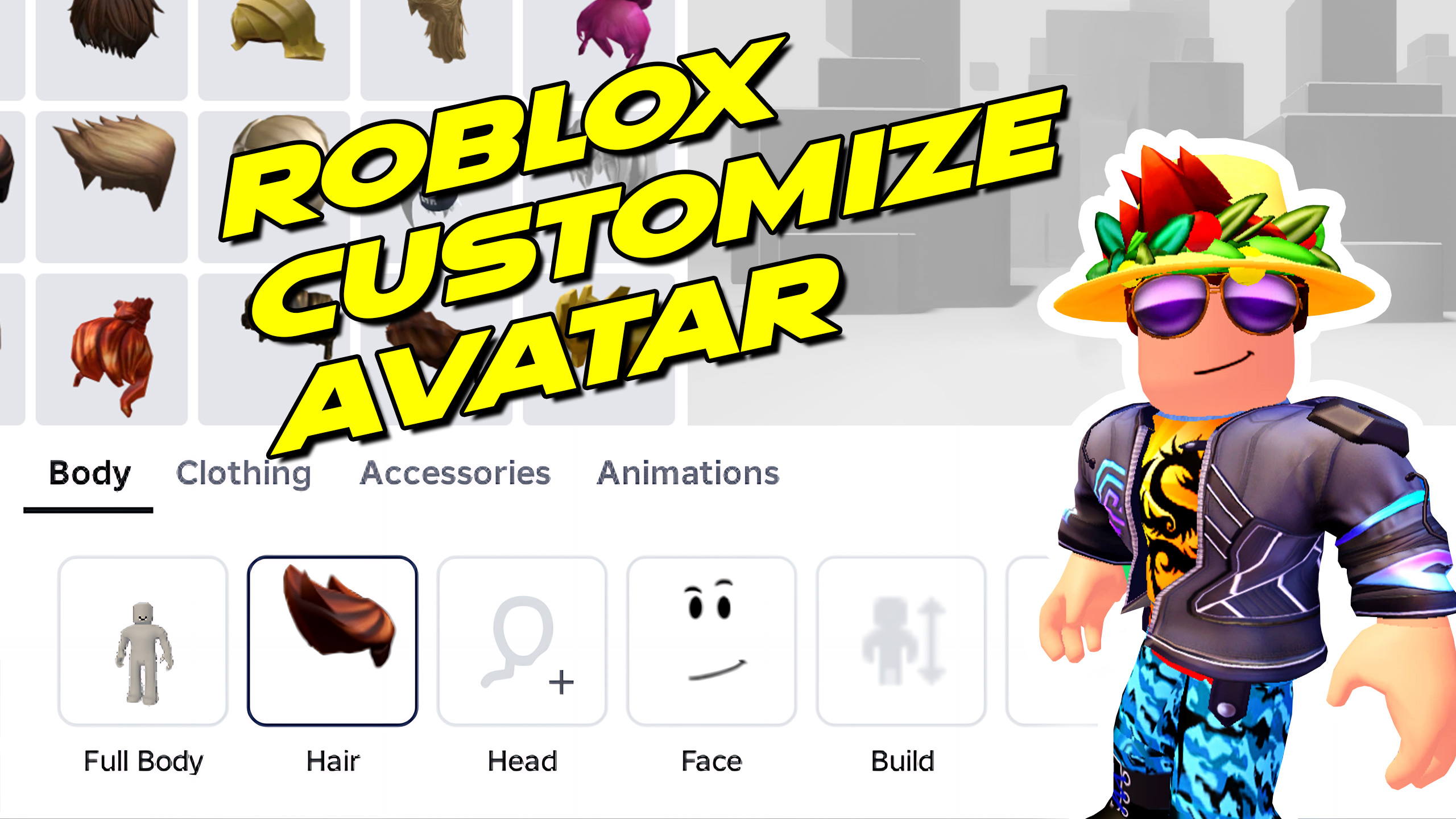
How to Customize Your Roblox Avatar in 2026 (Full Beginner Guide)
Hi, George here!
Are you new to Roblox and want to learn how to customize your avatar? Good news — it’s actually really easy, and in this guide I’ll walk you through everything step-by-step using the updated 2026 avatar controls.
New to Roblox? Start here first:
Roblox Beginner Tutorials.
If you’re on a phone or tablet, bookmark this section too:
Roblox Mobile Guides.
Getting Started with the Avatar Editor
To begin, open the Roblox desktop app (this is the best place for full customization). If you haven’t installed Roblox yet, use my setup walkthrough here:
Download Roblox Player in 2026 (Full Setup).
- Click on the Avatar button
- You’ll now see your character on screen
Basic Camera Controls
- Scroll wheel → Zoom in and out
- Left-click + drag → Rotate your character
- Right-click + drag → Move your avatar around the screen
These controls let you see your character from every angle so you can fine-tune your look.
Browsing Avatar Items
On the side panel, you’ll see categories like:
- Avatars
- Body
- Clothing
- Accessories
- Animations
- Emotes
Want free items for your avatar? Use this guide:
How to Get Free Stuff in Roblox.
And if you’re hunting codes, check:
Roblox Codes.
You can:
- Browse items you already own
- Use the search bar to find new items
- See recommendations based on your searches
If you want something specific, click the Search button, type what you want, and browse results.
Customizing Your Avatar
Avatar Presets (Important)
Before making changes:
Go to Avatars → Save Avatar
This lets you:
- Save different outfits
- Quickly switch between looks
- Avoid losing your favorite designs
If you like outfit-style customization content, browse:
Roblox Avatar Outfits.
Changing Your Profile Picture (Thumbnail)
- Click your avatar thumbnail
- Choose an emote pose
- This becomes your profile picture
Body Customization
Go to Body → Full Body
- Choose full avatar styles
- Use free, earned, or purchased bodies
- Get recommended styles
Adjust Body Size & Shape
- Height → Tall or short
- Width → Skinny or wide
- Proportions → Overall look
Tip: Smaller avatars often look more fun and unique!
Head Settings
- Head size
- Head shape
- Face style
Skin Color Options
- Use the color slider for quick changes
- Use Advanced mode to customize each body part individually
Advanced mode lets you set different colors for:
- Head
- Torso
- Arms
- Legs
Clothing Customization
Go to the Clothing section to change:
- Tops
- Outerwear (jackets, hoodies, capes)
- Bottoms (pants)
- Shoes
If you want to make your own clothes (shirts, pants, etc.), start here:
Roblox Downloads & Templates.
Important Clothing Tip
Clothing layers stack on top of each other:
- Classic shirts go underneath
- T-shirts sit on top
- Jackets/outerwear go over everything
If something isn’t visible, you likely have another item covering it.
Classic Clothing
You can use:
- Classic shirts
- Classic pants
- Classic t-shirts
These can be free, earned in games, or custom-made.
Resetting Your Avatar
- Click Clear
- This removes all items
- Returns to a basic avatar
Important: Save your avatar first before clearing.
Accessory Adjustment Tool (2026 Feature)
Click the gear icon → Adjust Accessories
This lets you fine-tune items like glasses, headphones, and more.
What You Can Adjust
- Position (X, Y, Z) → Move item
- Rotation → Spin item
- Scale → Resize item
Example:
- Move headphones higher onto hair
- Adjust forward/back for better fit
- Resize to match your avatar
Extra Settings
- Head shape controls
- Clothing layering options
- Skin tone settings
Some options depend on what items you are wearing.
Final Tips for Beginners
- Always save your avatar before making big changes
- Use camera controls to check all angles
- Mix free and custom items for unique looks
- Use accessory adjustments for pro-level customization
More Roblox Help (Quick Links)
- Roblox Free Items
- Roblox Codes
- Roblox Avatar Outfits
- Roblox Mobile Guides
- Roblox Game Developer
- Roblox Giveaways
Final Thoughts
That’s all there is to customizing your Roblox avatar in 2026!
Once you’ve downloaded or earned items, customized your look, and adjusted accessories, you’ll have a completely unique avatar ready to use in any game.
If you want more Roblox tutorials, free items, and downloads, check out my website — I’m adding new content all the time.
See you in the next one!